
Guides · 01 / 10
Your first week with LingoWonders
LingoWonders runs on a one-week loop. You put in this week's words or a text you want to read, listen to it, say it, write it by hand, check it and print it. This guide gets you round the loop once.
There is no account to make. Everything below works on iPhone and iPad.
Step 1: Know the five tabs
The bar at the bottom has five places:
- Week shows this week's plan.
- Lists holds your lists, and the ready-made decks in the Library.
- The + button adds a list or a reading.
- Read has your readings, stories and videos.
- Settings has voices, languages, backup and Help & FAQ.
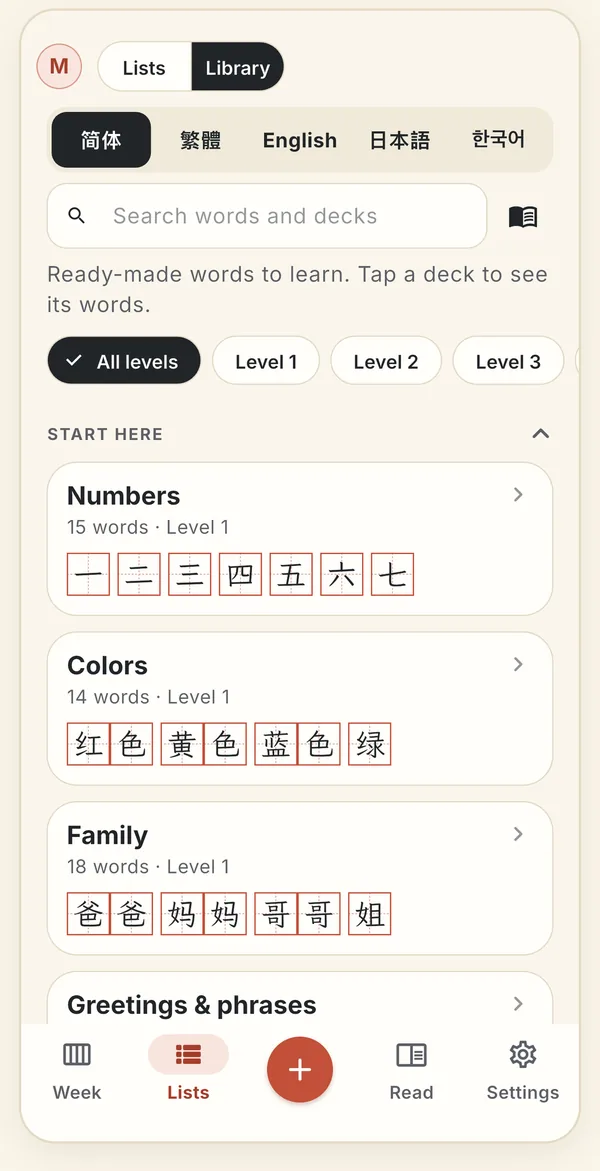
The tab bar sits under every screen. Here Lists is open on the Library. Step 2: Choose who is learning
Each child or learner has their own lists, progress and recordings. Switch with the picture at the top left of Week, Lists and Read. Add and manage children in Settings › Children.
Free has one profile. Pro has more, and Family Sharing shares Pro with your family.
Step 3: Make your first list
Tap +, then Add to a list. Type or paste words or sentences, or use the bar: Paste, Scan, YouTube, Web link, File. Words wait in Quick notes until you pick a list.
For a school spelling list, photograph the sheet with Scan. Photo lists are free and unlimited, the photo stays with the list, and long sentences stay whole.
Step 4: Or start from the Library
Open Lists › Library and pick a language: 简体, 繁體, English, 日本語 or 한국어. Decks are grouped by level and topic. Search by word, reading or meaning: typing “shui” finds 水.
The free decks include HSK 3.0 levels 1 to 3, about 2,200 words in Simplified and Traditional. Levels 4 to 6 are in Pro.
Step 5: Practise from the list
Open a list and pick a tile: Dictation, Flashcards, Write on screen or Print sheets. Every word shows its reading and meaning, and the speaker button reads it aloud.
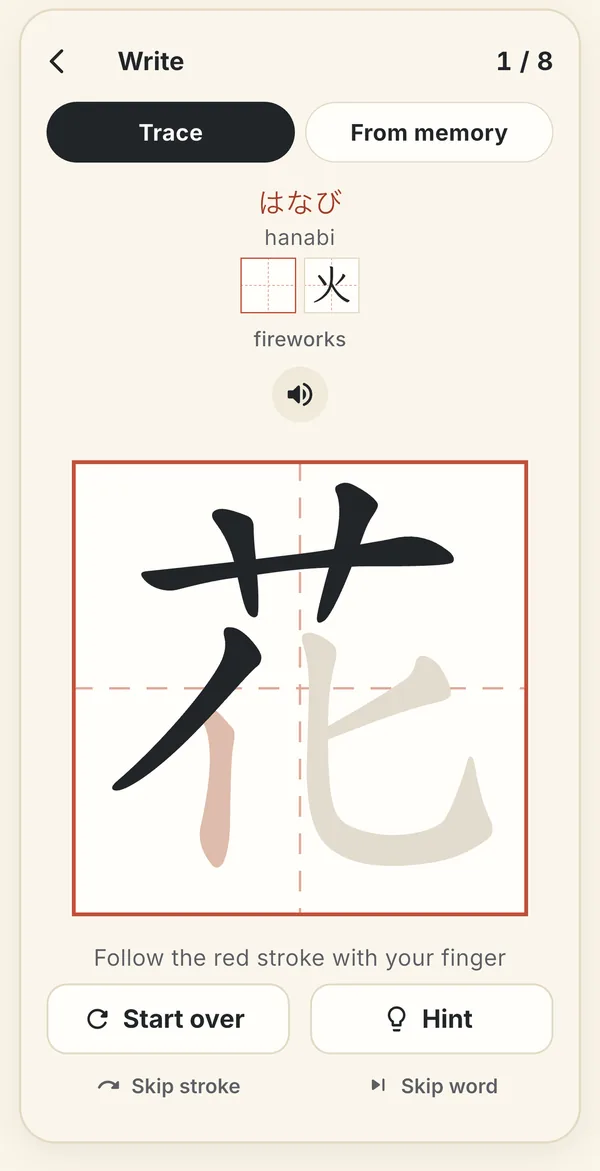
Write on screen: trace in stroke order with a finger or Apple Pencil. Step 6: Let the Week tab lead
The Week tab keeps one card per list and shows the next step as one button, so you don't have to remember what comes after dictation.
If you make a Week Pack from the list, the pack becomes that week's plan: listen, read aloud, dictation, a test sheet, Paper Check and the misses.
Still stuck? The app has its own Help & FAQ under Settings, or write to [email protected]. A real person reads every message.