
Guides · 03 / 10
Share to LingoWonders from YouTube, Safari or any app
You don't have to copy a link and come back. In YouTube, Safari, Photos, Files or any app with a Share button, tap Share and choose LingoWonders. What you shared opens in Read as a new reading, ready to check.
Sharing to LingoWonders is new in version 2.1.
Step 1: Tap Share, then LingoWonders
In the other app, tap Share and choose LingoWonders in the row of apps. If it isn't in the row, scroll to the end, tap More and pick it from the list.
You can share one web link, some text, up to 8 images, or one file at a time.
Step 2: What each kind of share becomes
- A YouTube link: the video's captions, in the language you are learning first. The reading plays with the video.
- A web page link: the page's main article.
- Text: the text itself.
- Images: the text in them, read like photographed book pages.
- A file: its text, subtitles (.srt or .vtt) or PDF.
Step 3: When YouTube won't send the captions
Some videos have no captions, and YouTube sometimes refuses to send them. Then the draft keeps the video and offers to paste the text instead. The video's voice still plays as the audio.
Step 4: Check the draft and save the reading
The draft opens in the Read editor. Set the title and the language and fix any sentence, the same way as on Check the text, then tap Create reading.
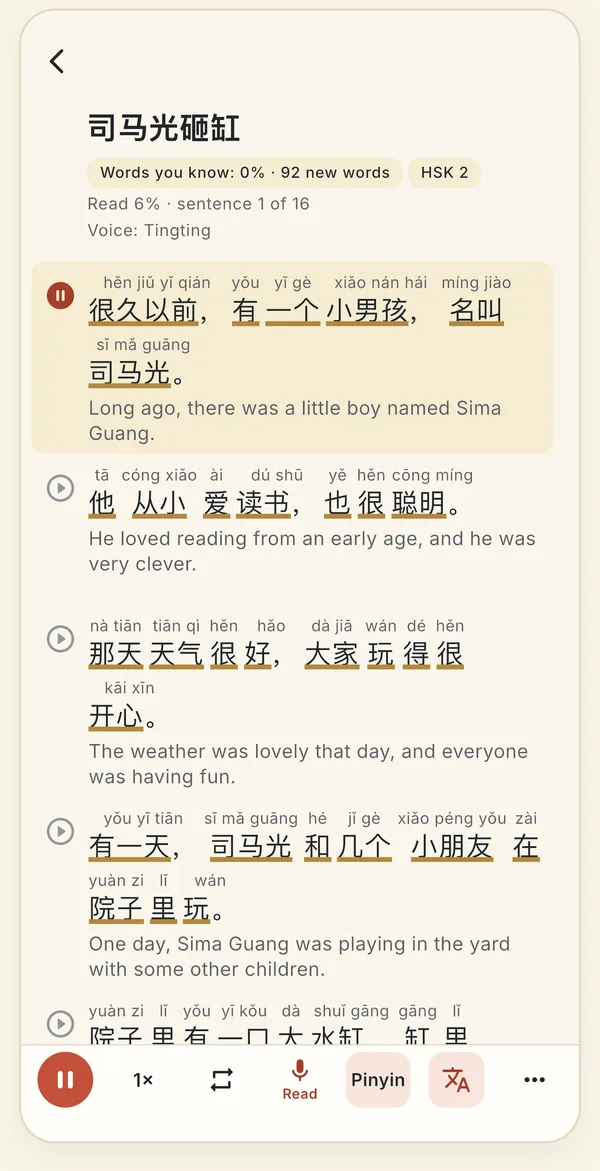
Every reading looks like this: the reading over the words, a translation below.
Still stuck? The app has its own Help & FAQ under Settings, or write to [email protected]. A real person reads every message.