
Guides · 09 / 10
The word library and your lists
Lists are where words live: your own, the school's, and the ready-made decks in the Library. Each word keeps its reading, meaning, voice and practice history.
Step 1: Browse the Library
Open Lists › Library. Pick a language at the top (简体, 繁體, English, 日本語, 한국어) and a level, or search words and decks. Tap a deck to see its words.
The Chinese library has about 7,200 words, including HSK 1–6; levels 1 to 3 are free. There are Tao Nan School P1 spelling and 听写 lists, and thousands more words from preschool to A level.
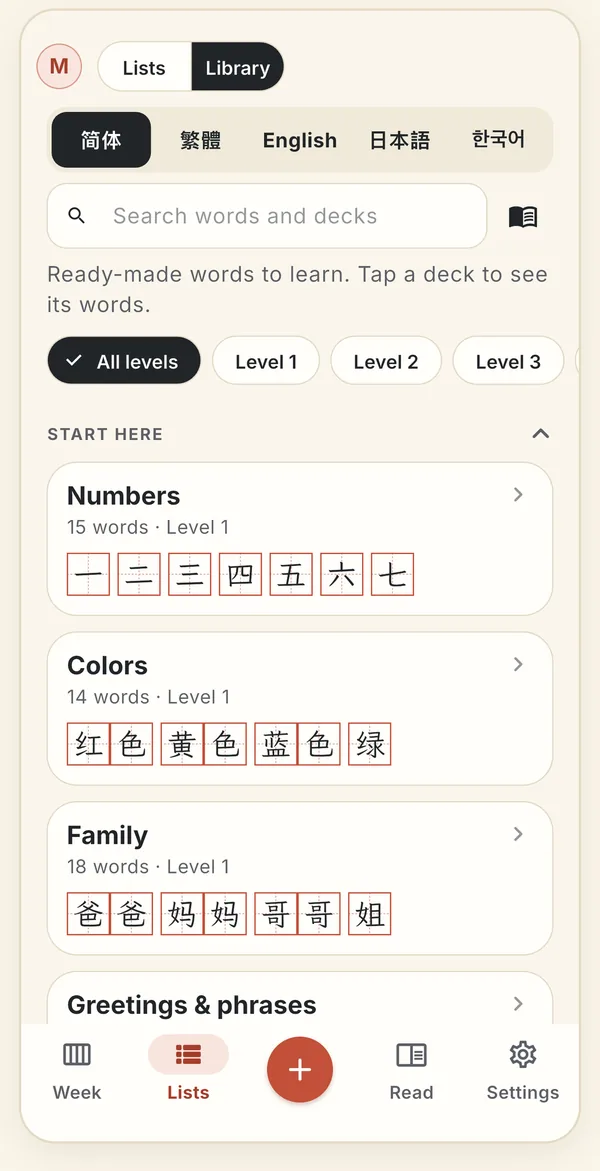
Ready-made decks, filtered by language and level. Step 2: Tidy a list in the editor
Open a list and tap Edit list. Auto-split cuts text into sentences, words or characters; tap a splitter to remove it, or between letters to add one. Clean up, remove repeats, sort and undo are in the same bar.
Tap a row to edit its reading, meaning and sentences, or to record your own voice for it.
Step 3: Listen to the whole list
Listen to the list plays every item one after another, also with the screen off, with lock-screen controls. Speed and a sleep timer are free.
Step 4: Share a list
Open the list and tap Share list: a QR code or a link, with Copy link. Sharing is free. A list that is too big for a link, or that includes your voice recordings (Include my voice recordings), is shared as a file instead; send it by Messages, Mail or AirDrop.
Step 5: Back up or move to a new phone
Settings › Move to a new phone › Back up saves lists, children, readings, recordings and photos in one file. On the new phone, open the file from Files or AirDrop and restore it: merge adds to what is there, replace deletes the chosen children's data first.
Still stuck? The app has its own Help & FAQ under Settings, or write to [email protected]. A real person reads every message.