
Guides · 04 / 10
Listen, tap a word, and read it aloud
Listening and speaking happen in the same reader. Play the text, stop on a word you don't know, then say the sentence yourself and compare it with the app voice.
The speech check runs on your phone. Recordings stay on your phone.
Step 1: Play and follow along
Play reads the sentences aloud and the page follows. Speed goes from 0.5× to 2×. There are repeat, listen-and-repeat, an A–B loop and a sleep timer, and it keeps playing with the screen off, with lock-screen controls.
Step 2: Tap a word to look it up
Tap any word. The sheet shows its reading, its meaning and its stroke order, with Play and Slow to hear it. The red Add button saves it (in the picture, Add to 桃太郎); Choose list… picks another list.
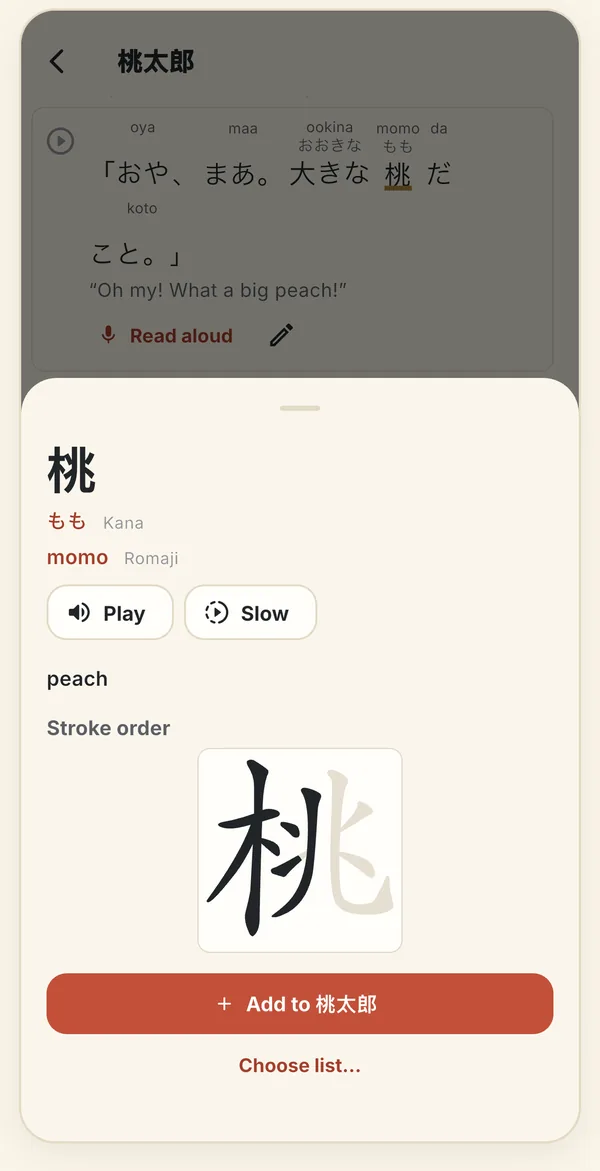
Tap 桃 in a Japanese story: kana, romaji, meaning, stroke order, and one tap to save it. Step 3: Read a sentence aloud
Tap a sentence, then Read aloud. The sheet shows the sentence with its reading; the translate button shows or hides the translation. Tap Record and say it.
Then play your take beside the app voice: App voice and My voice sit side by side.
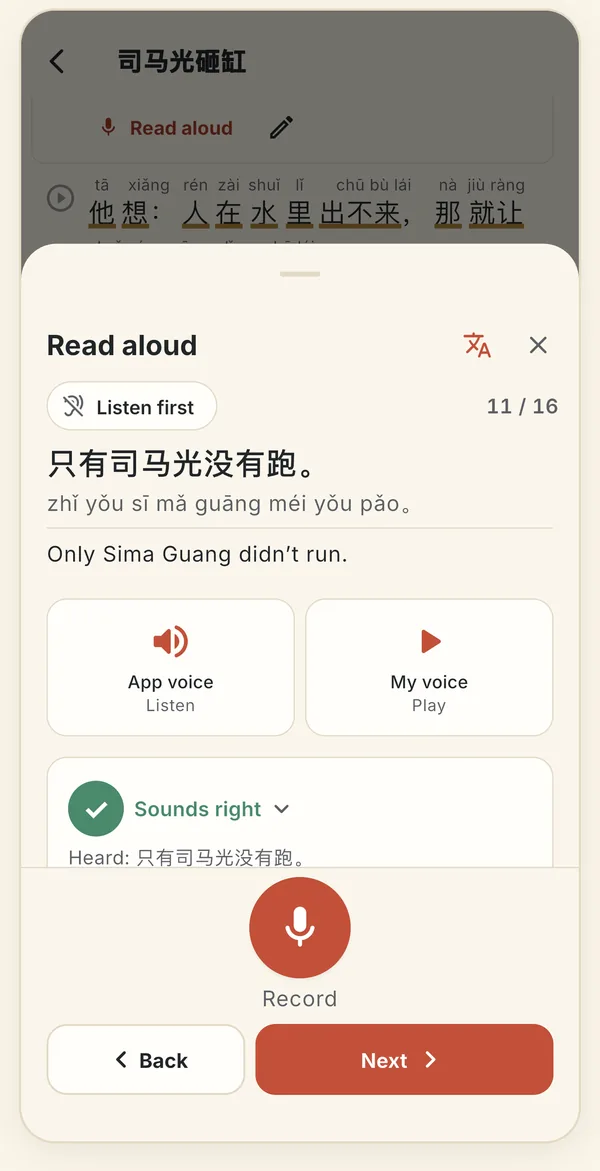
Read aloud: the app voice and your voice side by side, and a mark from the speech check. Step 4: Get a mark from the speech check
After you record, the check marks the take Sounds right or asks for it once more. It works for Chinese, English, Japanese, Korean, Vietnamese and Russian, using the phone's own speech recognition.
If the phone has no on-device recognition for the language, the take is still saved and played, and you listen and decide.
Step 5: Use Listen first and Next
Listen first is a switch: the app reads the sentence, then Your turn appears and recording starts. Next while recording saves the take and starts the next sentence, so you can read a whole page without stopping.
Step 6: Record the whole piece (Pro)
In the reader, open the More menu and choose Record the whole piece. Read it all, then stop. The speech check marks every sentence. Under each one, play My take and compare it with the App voice or, for a video, the original sound.
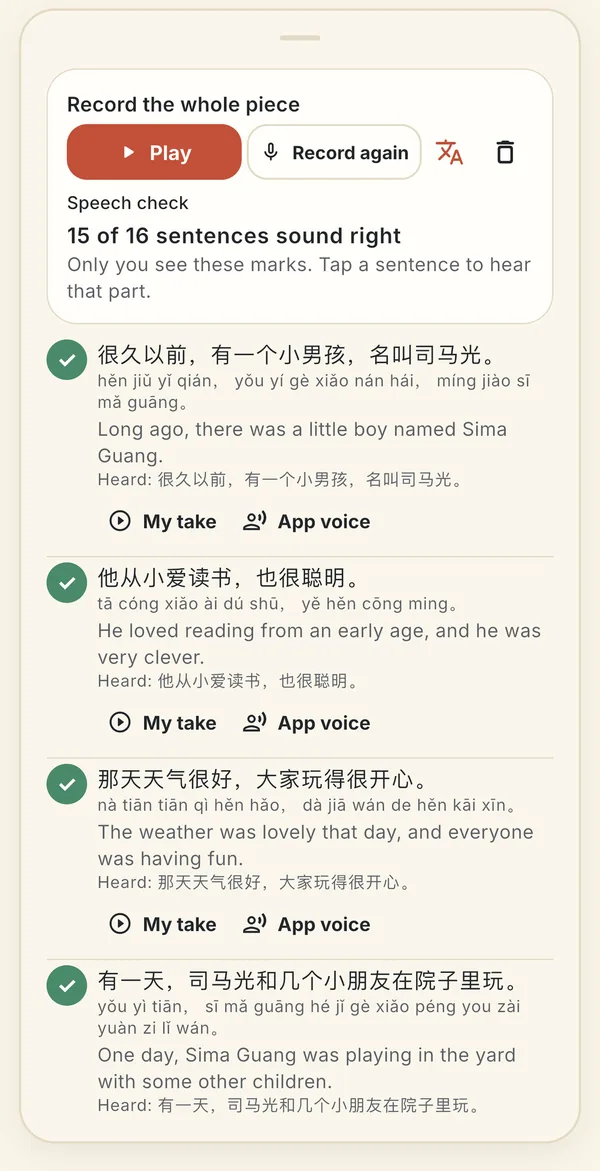
One take of the whole story, checked sentence by sentence. Only you see these marks.
Still stuck? The app has its own Help & FAQ under Settings, or write to [email protected]. A real person reads every message.