
Guides · 02 / 10
Read anything: photos, text, web pages and YouTube
A reading is any text you want to learn from: a page of a storybook, an article, the captions of a video. LingoWonders splits it into sentences, adds the reading over the words and the translation below, and reads it aloud.
Ready-made stories in Chinese, English, Japanese and Korean are in Read already. This guide is about bringing your own.
Step 1: Start a new reading
Tap +, then New reading, and choose where the text comes from:
- Photos: take or pick the pages of a book.
- Paste text: any text you copied.
- File: text, subtitles, PDF or a picture.
- Web link: the text of a web page.
- YouTube link: a video with captions.
Step 2: Book pages: photograph them in order
Take a photo of each page, in order. Hold a page and drag it to move it, then tap Read the text. The text is read on your phone.
Free reads one page at a time; Pro reads whole books of many pages at once. Pages set in horizontal lines work best; vertical Japanese text can't be read yet.
Step 3: Web pages and YouTube: paste the link
For a page, paste the address and tap Get the text. For a video, paste a youtube.com or youtu.be link, tap Find captions and pick the captions to read. The reading then plays with the video.
Your phone opens the page or the captions itself. Nothing goes through our servers.
Some videos have no captions, and YouTube sometimes refuses to send them. Then paste the text instead: the video still plays as the audio.
Step 4: Check the text, then create the reading
On Check the text, set the title and the language, and tap a sentence to fix it: edit it, join it with the next one, split it or delete it. Then tap Create reading.
Step 5: Share straight from other apps
In Safari, YouTube, Photos, Files or any app with a Share button, tap Share and choose LingoWonders. The page, video, text, photos or file open in Read as a new reading. The next guide shows what each one becomes.
Step 6: Read along
Each sentence shows the reading over the words and a translation below. The reading button in the bar turns readings on or off; Settings › Learning chooses which ones show: pinyin, zhuyin, Jyutping, kana, romaji or both. Korean shows its romanization.
The translate icon uses Apple's on-device translation, which needs iOS 18 or later. Nothing is sent online for it.
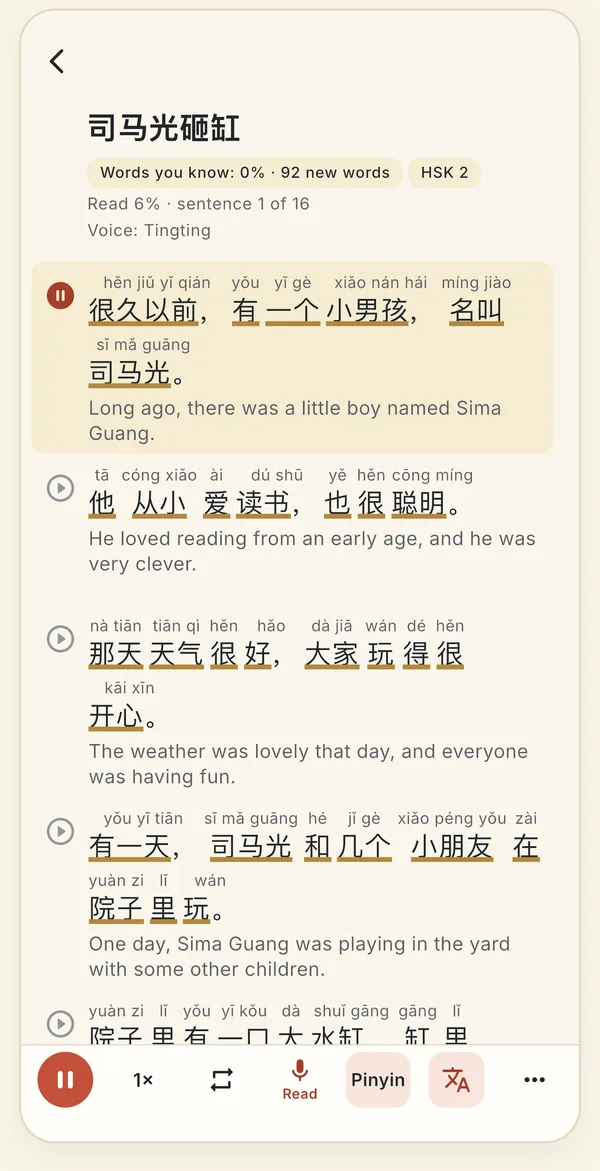
Pinyin over the words, a translation below, and the sentence being read is highlighted.
Still stuck? The app has its own Help & FAQ under Settings, or write to [email protected]. A real person reads every message.